Build the missing scenes in your Shopify gallery
Your featured product image appears far beyond the product page—in collections, cart, checkout, and often the home page. Keep that frame clear and truthful. Use the rest of the gallery to show context, scale, use, and mood around the same product.
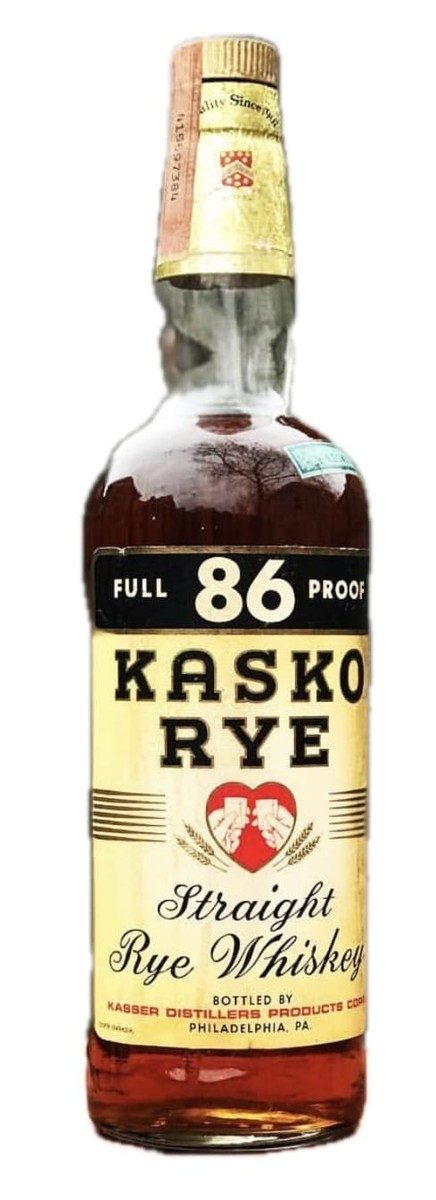
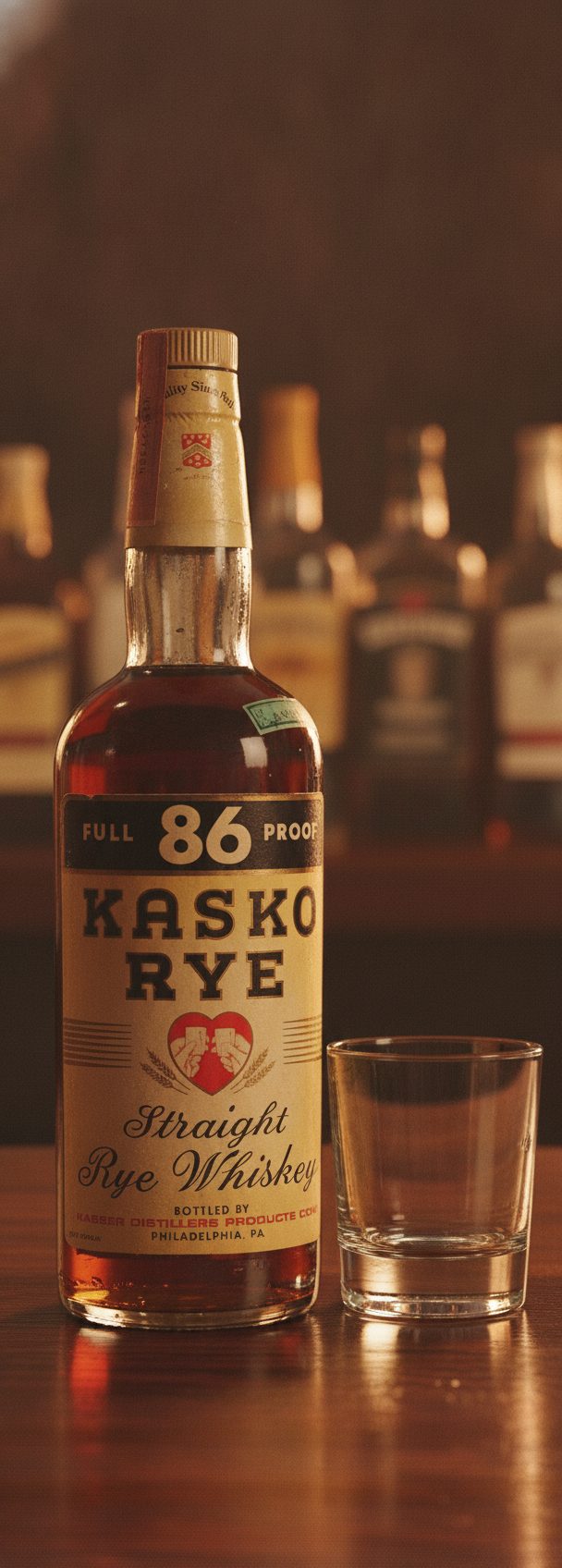
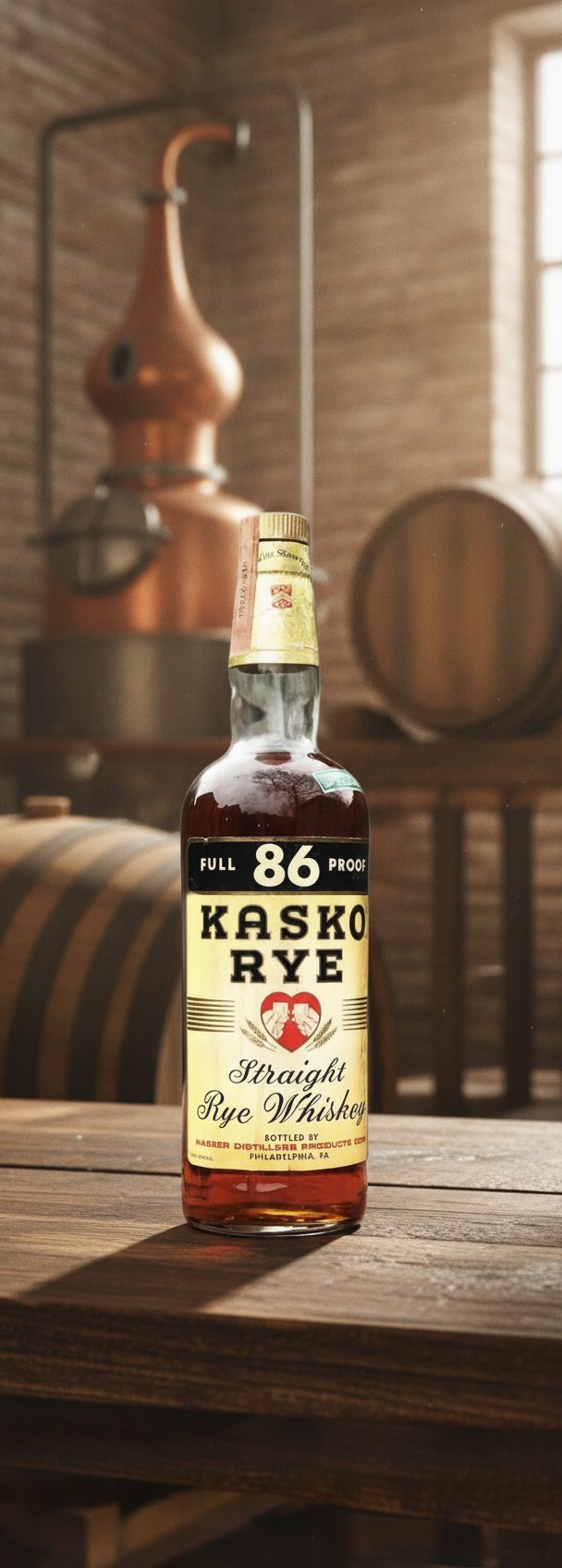
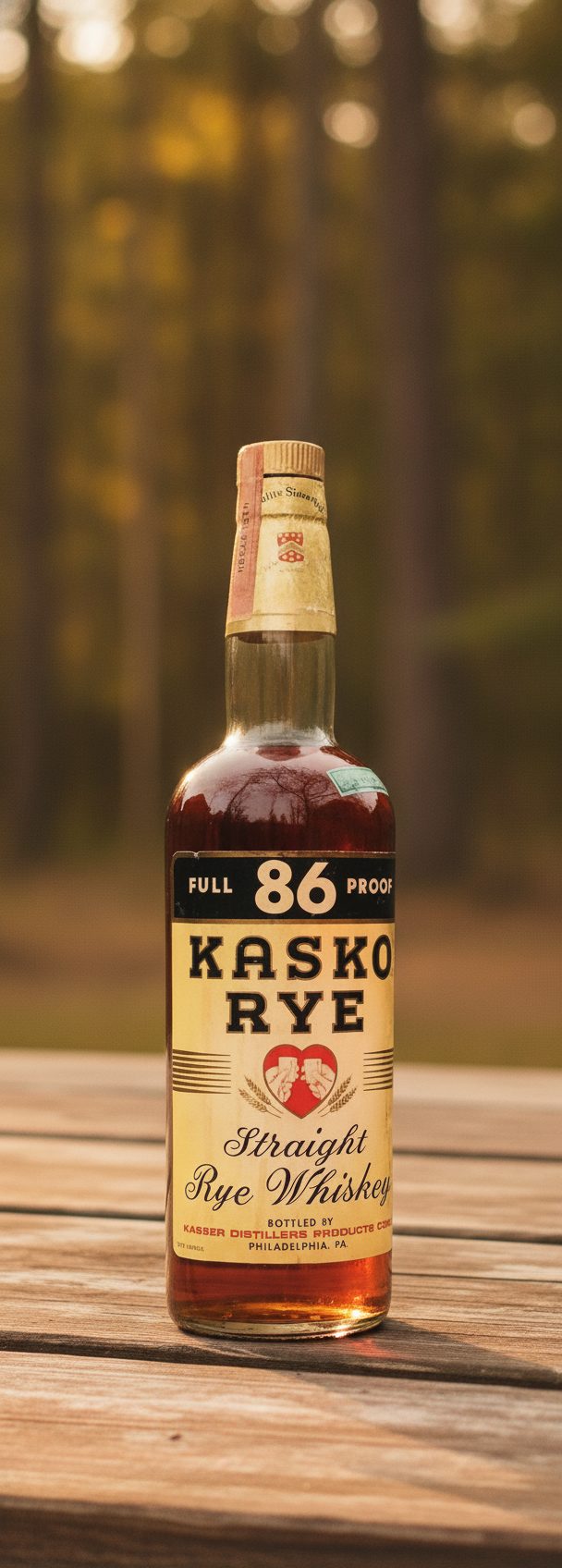
The contact sheet above begins with the real reference photo, then shows three generated contexts. That is the useful division of labor for an owned storefront: real product evidence establishes what ships; reviewed lifestyle scenes help a shopper imagine where it belongs.
Shopify supports large mixed-media galleries, but more files are not a strategy. Build a compact sequence where every frame answers a different buyer question, and export all images in a consistent shape so your theme does not crop the product unpredictably.
A six-frame product page you can build deliberately
Frame 1: a clean featured image of the real product. Frame 2: a second real angle. Frame 3: a real close-up of texture, packaging, or included parts. Frames 4 and 5: reviewed lifestyle scenes for context and use. Frame 6: scale, dimensions, or a final real detail that resolves the most common pre-purchase question.
Do not spend all six frames saying “this looks nice.” A bar scene, shelf scene, and picnic scene are only useful together if each changes the shopper's understanding. Pick environments that match actual use and leave claims, badges, ingredients, measurements, and readable instructions to verified real photography or designed graphics.
Make the scene library fit your theme
Check the media container in your live theme before generating a catalog. Shopify says square product images at 2048 × 2048 pixels usually display best, while the actual presentation depends on the theme. Keep the product near the safe center, use the same aspect ratio across a product, and preview collection cards as well as the product page.
For a catalog family, write a small set recipe: surface, background depth, light direction, camera height, and palette. Reuse that recipe while swapping the authorized product reference. The point is a coherent studio, not the same generic room pasted behind every SKU.
The publish check
Compare every staged frame with the physical item or approved hero photo. Check cap, count, color, silhouette, label placement, prominent logo, included accessories, and any reflection that changes apparent material. Discard frames with softened fine print or a redesigned shape; do not let a visually stronger scene overrule product truth.
What stays true
- Keep the featured image and detail evidence truthful; use generated scenes for reviewed context, not for product facts.
- Match your live theme's crop and use one aspect ratio across each gallery; square 2048 × 2048 images are Shopify's general best-display guidance.
- Represent only products you own or are authorized to sell, and never add a claim, feature, result, or included item the product lacks.
Questions, answered plainly
Which Shopify image should stay a real photo?
Keep a clear real product image as the featured frame and retain real close-ups for details a shopper relies on. Use generated scenes as reviewed context around that evidence, not as the only record of what ships.
What size should I export for Shopify?
Shopify says square product images at 2048 × 2048 pixels usually display best. Your theme controls the actual crop and layout, so preview the product page, collection grid, cart, and mobile view before updating a whole catalog.
How do I keep a consistent look across products?
Save a short art-direction recipe—surface, palette, light direction, camera height, and background depth—and reuse it with each authorized product reference. Then review every item's shape, label, and color independently.
What happens after I click the button?
You stay on KeepThisProduct and open its private scene workbench. Upload an authorized hero photo, optionally add a label-detail crop, choose the desk or another proven set, and inspect one reduced watermarked preview before checkout. No signup is required.
Make one missing storefront scene
Bring the approved hero photo, direct the setting, and reject the result unless the product still matches what ships.